Key Takeaway
Connect Tradify to Xero in 15 minutes — invoice sync, VAT mapping, GoCardless setup and bank rules. Cuts monthly bookkeeping from 6 hours to 20 minutes.
Every plumber who uses Tradify and Xero separately is doing double entry. You create the quote in Tradify, complete the job, generate the invoice — then open Xero and type the same numbers again. Or you export a CSV, import it, fix the formatting errors, and hope the VAT codes match.
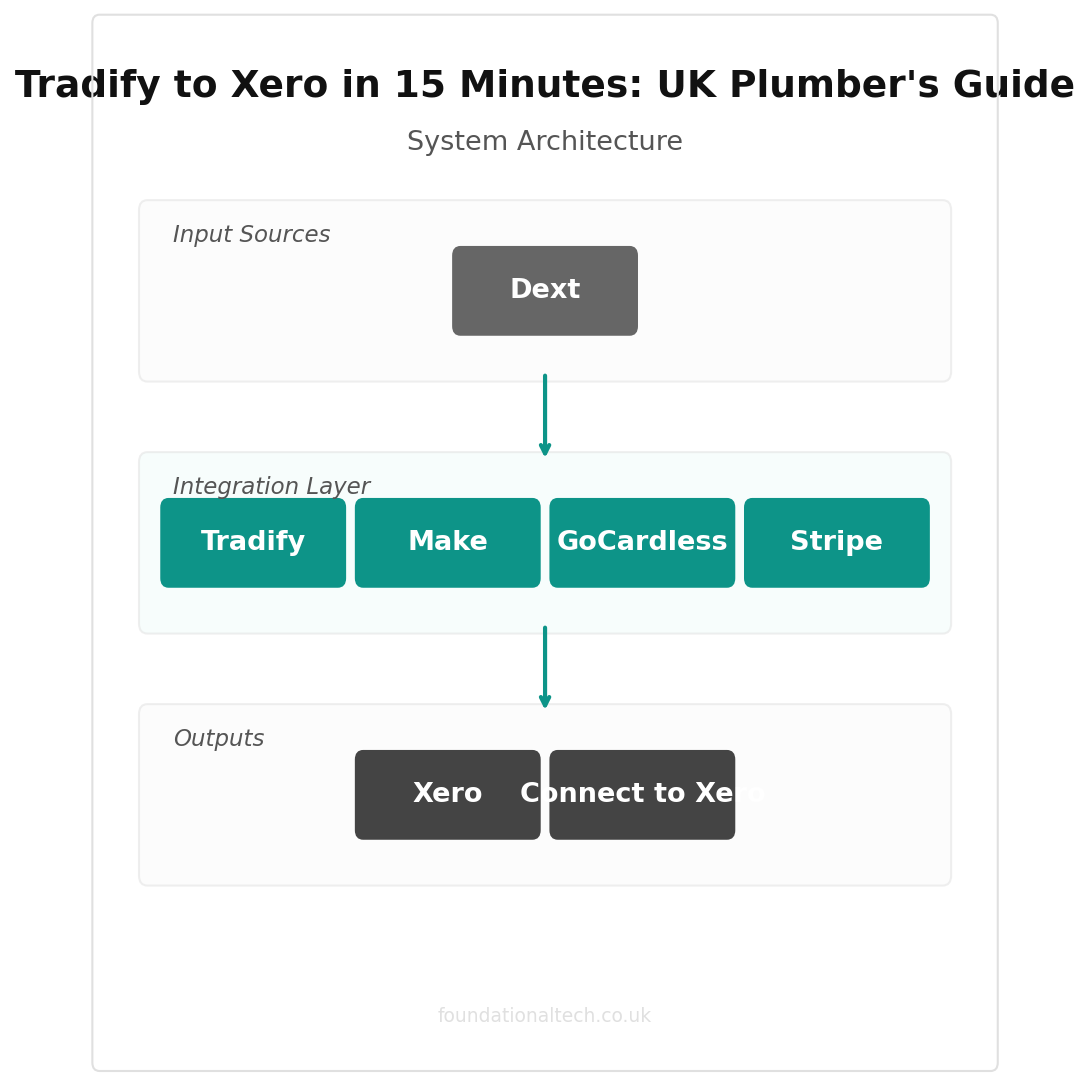
This article kills that workflow. In 15 minutes you'll connect Tradify directly to Xero so that every invoice, every payment, and every expense syncs automatically. No CSV. No retyping. No end-of-month reconciliation nightmare.
What You Need Before You Start
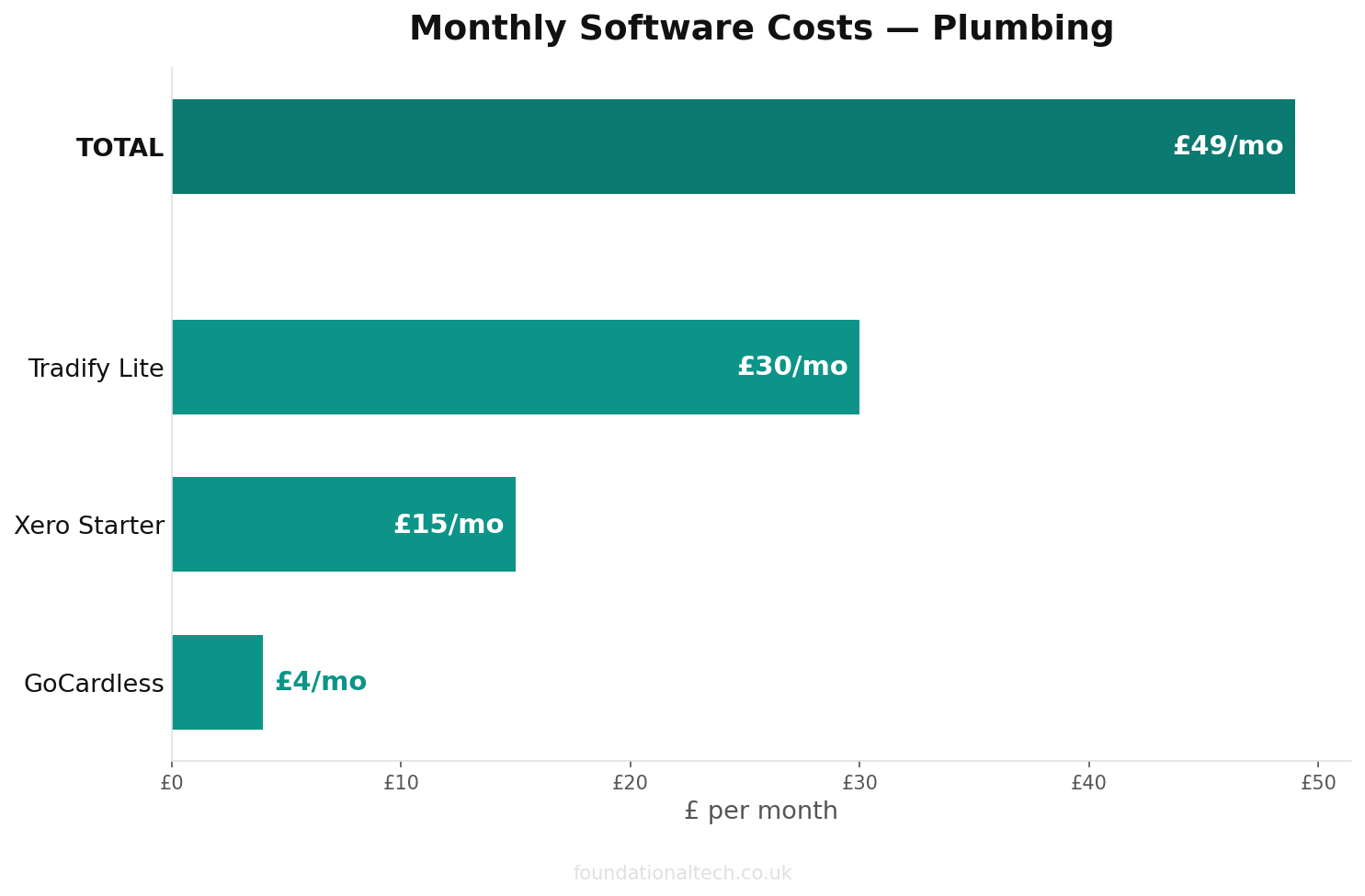
You need an active Tradify account (see our full comparison of plumbing software if you are still choosing — any plan — Lite at £29.50/user/month or Pro at £28/user/month for 4+ users) and a Xero account (Starter at £15/month works fine, Standard at £30/month if you send more than 20 invoices a month). Both need to be on their current UK plans.
You also need your Xero chart of accounts set up with at least these categories: Sales (plumbing services), Materials (cost of goods), Motor Expenses, Tools and Equipment, and Subcontractor Costs. If your accountant set up Xero for you, these probably already exist. If not, create them — it takes two minutes in Settings → Chart of Accounts.
Step 1: Connect Tradify to Xero
Open Tradify on your desktop browser (the mobile app works but the desktop is easier for initial setup). Go to Settings → Integrations → Xero. Click Connect to Xero. You'll be redirected to Xero's login page. Sign in and authorise the connection.
Tradify will ask you to map your account codes. This is the most important step — get it right here and everything flows cleanly forever.
Revenue mapping: Map your Tradify invoice line items to your Xero Sales account. If you have separate revenue codes for labour and materials (recommended), map them separately. Tradify lets you set default codes for each line item type.
Expense mapping: Map Tradify purchase orders to the correct Xero expense accounts — Materials for parts, Subcontractor Costs for any subbies, Motor Expenses for fuel receipts you log through Tradify.
VAT codes: Tradify defaults to 20% standard rate. If you do zero-rated work (new builds under certain conditions), create a separate line item type in Tradify and map it to the zero-rated VAT code in Xero.
Click Save. The connection is live.
Step 2: Configure What Syncs
In Tradify's Xero integration settings, you'll see toggle options for what syncs automatically. Turn on all of these:
Invoices → Xero: Every invoice you create in Tradify appears in Xero as an approved invoice. The customer name, line items, amounts, and VAT all carry across. You don't touch Xero at all for invoicing.
Payments → Xero: When a customer pays (via bank transfer, card, or GoCardless), mark it as paid in Tradify. The payment syncs to Xero and reconciles against the invoice.
Purchase orders → Xero: When you raise a PO in Tradify for materials from a supplier, it appears in Xero as a bill. When the supplier invoice arrives, it's already there waiting for you to match.
Contacts → Xero: Customer and supplier details sync both ways. Update an address in Tradify, it updates in Xero. No duplicate records.
Step 3: Set Up Bank Rules in Xero
With Tradify syncing invoices and payments, Xero's bank feed will start matching transactions automatically. But you need bank rules for the recurring items Tradify doesn't handle.
Go to Xero → Accounting → Bank Accounts → [your account] → Manage Rules. Create rules for:
Tradify subscription: £34/month → map to Software Subscriptions.
Fuel purchases: Any transaction from Shell, BP, Esso, etc. → map to Motor Expenses.
Tool purchases: Screwfix, Toolstation, Plumbase → map to Tools and Equipment (or Materials, depending on your accountant's preference).
Insurance: Monthly direct debit → map to Insurance.
Once these rules are set, 70–80% of your bank transactions will reconcile automatically. You'll spend 5 minutes a week clicking "OK" on the ones Xero matched correctly, rather than 2 hours categorising everything manually.
Step 4: Test the Full Loop
Create a test job in Tradify. Add a line item for labour (2 hours at £60) and a line item for materials (£45 copper fittings). Generate the invoice.
Open Xero. Within 5–10 minutes (syncs run on a short interval, not real-time), the invoice should appear under Sales → Invoices. Check that the amount is correct, the VAT is calculated at 20%, and it's mapped to the right revenue account.
Mark the invoice as paid in Tradify. Check Xero again — the payment should appear and the invoice should show as reconciled.
If anything's wrong, it's almost always a mapping issue. Go back to Tradify → Settings → Integrations → Xero and check your account code mappings.
| Step | Action | Time |
|---|---|---|
| 1 | Connect Tradify to Xero | 3 min |
| 2 | Configure what syncs (invoices, contacts) | 3 min |
| 3 | Set up bank rules in Xero | 3 min |
| 4 | Test the full invoice loop | 3 min |
| 5 | Connect GoCardless for Direct Debit | 3 min |
Step 5: Connect GoCardless for Automatic Payment
This step is optional but transforms cash flow. In Xero, go to Settings → Payment Services → GoCardless. Connect your GoCardless account (or create one — it's free, no monthly fee).
Now every invoice that Tradify syncs to Xero can include a "Pay Now" button with Direct Debit. For one-off jobs, the customer clicks, authorises payment, and the money arrives on the due date. For recurring work (landlord boiler services, maintenance contracts), set up a GoCardless mandate and the payment happens automatically each month.
The flow becomes: complete job in Tradify → invoice syncs to Xero → Xero sends invoice with GoCardless link → customer authorises → payment collected on due date → Xero reconciles automatically. You touch nothing after tapping "complete" in Tradify.

What Changes After Setup
Before this integration, the end-of-month routine for most plumbers looks like: export Tradify data, import to Xero, fix errors, manually reconcile bank feed, spend an evening getting the numbers to match, then email everything to the accountant.
After: Tradify and Xero talk to each other continuously. Invoices appear in Xero the moment you create them. Payments reconcile themselves. Bank rules handle the recurring transactions. Your accountant logs into Xero and sees clean, current data without you doing anything. This integration is one piece of the automation stack that lets a plumbing business run itself.
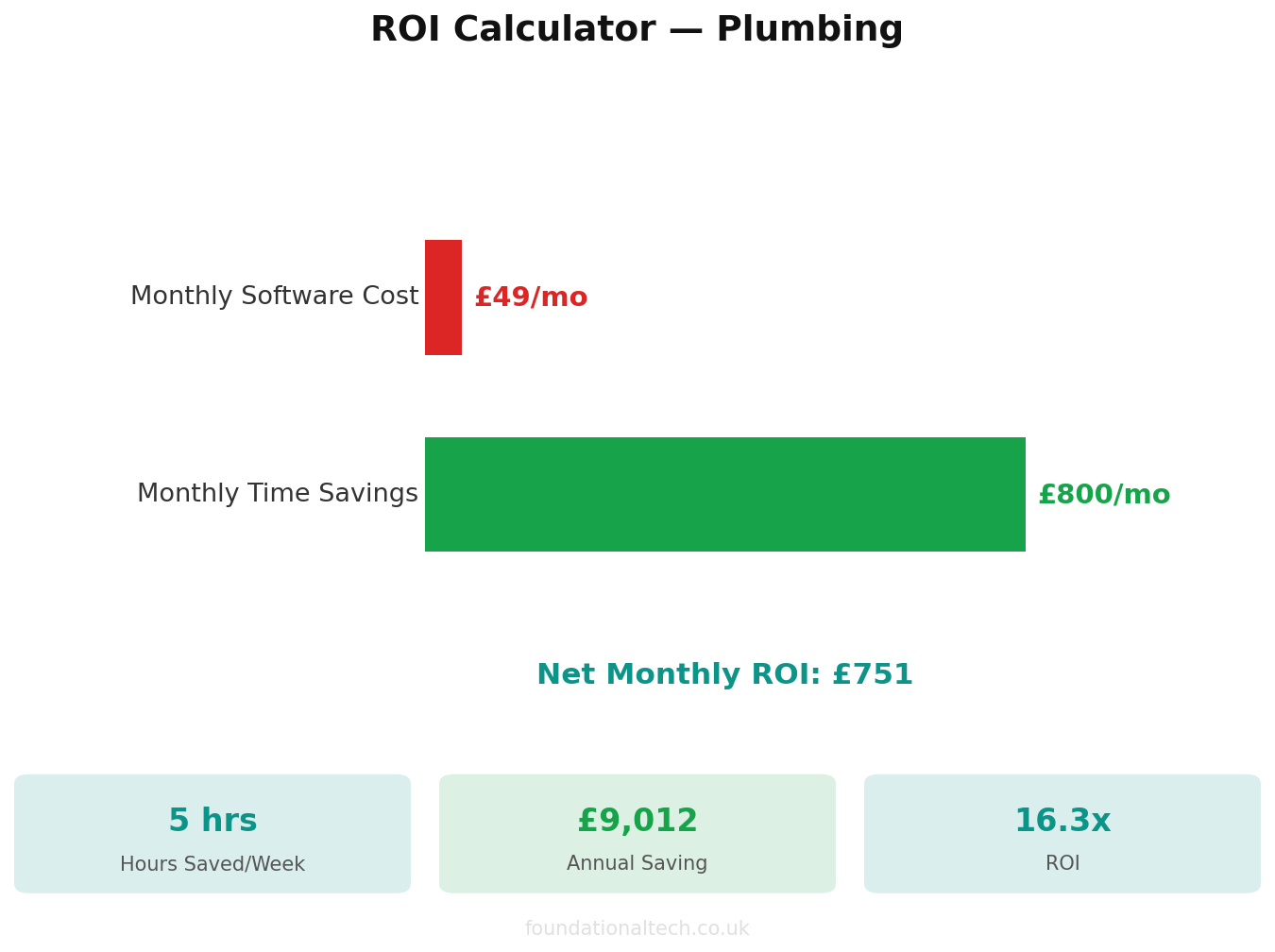
The monthly bookkeeping task drops from 4–6 hours to 15–20 minutes of reviewing auto-matched transactions. Your accountant's bill may drop too — less manual work on their end means less billable time.
Troubleshooting: The Complete Fix List
The basic integration usually works cleanly, but when it doesn't, the problems tend to fall into a few predictable categories. Here's every issue I've seen across dozens of plumbing businesses, and exactly how to fix each one.
Invoice sync failures. The most common cause is your Tradify subscription tier. Tradify Lite (£29.50/user/month) includes basic Xero connectivity, but the sync can be unreliable on this plan — some users report invoices failing to push through during peak times. If you're experiencing regular sync failures, check whether upgrading to Pro (£37/user/month minimum) resolves it. Pro includes priority sync and better error handling. Before you upgrade though, try disconnecting and reconnecting the integration first — this forces a fresh authentication and often clears stuck syncs.
Contact mismatches and duplicate customers. This is the problem that causes the most ongoing headaches. Both Tradify and Xero maintain their own customer databases, and if the same customer exists in both with slightly different names — "J Smith" in Tradify and "John Smith" in Xero — you'll get duplicate records. The fix is simple but requires discipline: always create customers in Tradify first, and let them sync across to Xero. Never manually create a customer in Xero if they're a Tradify job customer. If you've already got duplicates, you'll need to merge them in Xero (Contacts → select the duplicate → Merge) and then check that the surviving record matches the Tradify name exactly.
Payment allocation errors. When a customer pays multiple invoices in a single bank transfer — common with landlords who owe you for three separate jobs — Xero's bank feed shows one lump sum that doesn't match any individual invoice. Don't try to match it to a single invoice and adjust the amount. Instead, use Xero's "split transaction" feature: click on the bank transaction, choose "Transfer/Split," and allocate portions to each outstanding invoice. This keeps your accounts clean and ensures each job shows as fully paid.
Chart of accounts mapping. By default, Tradify sends everything to a single revenue account in Xero. This is fine if you never need to know how much of your income comes from labour versus materials versus callout charges. It's not fine if your accountant wants to see a proper breakdown — and they will. Set up tracking categories in Xero (Settings → General Settings → Tracking) to separate revenue by type. Then in Tradify, map each line item category to the appropriate tracking category. This takes ten minutes and gives you vastly better management information.
Historical data. The Tradify-Xero integration only syncs forward from the date you connect. Old invoices — anything created before the connection — won't magically appear in Xero. Don't try to back-fill manually by re-creating old invoices in Tradify and hoping they sync. This creates confusion and potential duplicate entries. Start clean from the connection date. If your accountant needs the historical data, export it from Tradify as a CSV and give it to them separately. Going forward, Xero is the single source of truth.
Bank Reconciliation Tips for Plumbers
Once Tradify is syncing invoices and payments to Xero, your bank reconciliation should be mostly automatic. But "mostly" still leaves a weekly task that trips people up. Here's how to make it painless.
Set up bank rules for recurring payments. Every plumber has the same monthly outgoings: van insurance, tool subscriptions, fuel cards, mobile phone, merchant account fees. In Xero, go to Banking → Bank Rules and create a rule for each recurring payment. For example: any payment to "Checkatrade" gets mapped to "Advertising and Marketing." Any payment to "Direct Line" goes to "Vehicle Insurance." Once you've set up 15-20 rules covering your regular outgoings, 70-80% of your bank transactions will auto-categorise. You'll spend five minutes clicking "OK" instead of thirty minutes figuring out what each payment was for.
Stripe and GoCardless payouts need special attention. If you take card payments through Stripe or collect Direct Debit through GoCardless, the money arrives in your bank as a single lump sum — not as individual customer payments. Xero's bank feed shows "Stripe — £1,247.83" and you need to match that against potentially dozens of separate invoices. The solution is to use Stripe's native Xero integration or A2X (yes, the same tool from the e-commerce world — it works for service businesses too). These break down each payout into individual payments that match against your invoices automatically.
Cash payments still happen. Despite the move to card and bank transfers, plumbers still get paid in cash — especially on smaller domestic jobs and emergency callouts. When a customer pays cash, mark the invoice as paid in Tradify (which syncs the payment to Xero), then in Xero record the cash as "receive money" against the appropriate invoice. Keep a simple cash log — nothing elaborate, just date, customer, amount, and job number — so that everything is accounted for. Your accountant will thank you, and HMRC won't have questions.
Merchant trade account reconciliation. If you have accounts with Screwfix, Toolstation, City Plumbing, or Plumbase, their monthly statements often arrive weeks after the purchases. The individual transactions appear on your bank feed or credit account as they happen, but the statement is the definitive record. Cross-reference your Dext (formerly Receipt Bank) captured receipts against the monthly statement to catch anything missing. Dext is particularly useful here — photograph every receipt at the trade counter, and Dext extracts the supplier, amount, and VAT automatically. At month end, compare Dext totals against the supplier statement. Any mismatch means a receipt was missed.
The 15-minute weekly review. This is the entire bookkeeping routine for a plumber with a properly connected Tradify-Xero setup. Every Friday afternoon — or Monday morning, whenever suits you — open Xero, go to your bank account, and work through the bank feed. Most items will already be matched or have a suggested match. Click through the auto-matched ones, manually categorise anything the rules missed, and investigate any unmatched items. That's it. Fifteen minutes. If you're spending more than that, something in your setup isn't configured properly — go back and check your bank rules and integration settings.
15 minutes
Total setup time from Tradify to Xero with GoCardless payment collection
VAT Handling: Standard Rate, Flat Rate, and the 5% Trap
VAT is where the Tradify-Xero integration catches out more plumbers than any other area. The sync handles standard-rate VAT perfectly, but the moment you step outside 20%, you need to know what you're doing.
Standard VAT (20%) is straightforward. Tradify calculates VAT at 20% on every invoice by default, and this syncs correctly to Xero. As long as your Xero default tax rate is set to 20% (check in Settings → Financial Settings), invoices will match perfectly. Nothing to worry about here.
Flat Rate Scheme is where the first confusion arises. Many plumbers are on the VAT Flat Rate Scheme — the rate for plumbing is 14.5% (or 16.5% in the first year of VAT registration under the limited cost trader rules, which most plumbers trigger). Under the flat rate, you still charge your customers 20% VAT on every invoice, but you pay HMRC a flat percentage of your gross turnover rather than claiming back input VAT on purchases. Tradify handles this correctly — it always creates invoices at 20% VAT, which is exactly what it should do. Xero handles the flat rate calculation when you file your VAT return, using the Flat Rate Scheme setting (Settings → Financial Settings → VAT Scheme). The key point: don't adjust the VAT rate on invoices in Tradify because you're on the flat rate. The 20% charge to customers is correct. Xero sorts out the difference when you file.
The 5% reduced rate trap. This is the one that costs plumbers money. Certain energy-saving installations qualify for the reduced 5% VAT rate instead of 20%. This includes some central heating installations, insulation work, draught stripping, and the installation of certain renewable energy systems like solar thermal panels and heat pumps. The qualifying criteria are specific and depend on the type of work, the age and use of the property, and whether the materials cost exceeds a certain proportion of the total job value.
If you do qualifying work and charge 20% VAT instead of 5%, you're overcharging your customer and overpaying HMRC. The fix is to override the VAT rate manually in Tradify for qualifying jobs — change the line item VAT from 20% to 5% before creating the invoice. This syncs to Xero at the correct rate. The common mistake is assuming all heating work qualifies — it doesn't. Repairs and maintenance are standard-rated. Only installations of energy-saving materials qualify, and only in certain property types. If you're unsure whether a specific job qualifies, check HMRC's VAT Notice 708 or ask your accountant before invoicing.
Reverse charge for construction (CIS). If you do subcontract work for a CIS-registered contractor, the domestic reverse charge for building and construction services may apply. Under the reverse charge, you don't charge VAT on your invoice to the main contractor — instead, the contractor accounts for the VAT on their own VAT return. This applies to most construction services supplied between VAT-registered businesses within the CIS chain, except where you're supplying to an end user.
Setting this up in Tradify and Xero is genuinely complex. In Xero, you need to use the "Domestic Reverse Charge" tax rate on the invoice. In Tradify, you'll need to manually adjust the VAT treatment for these jobs — the standard integration doesn't handle reverse charge automatically. My honest advice: if you regularly do CIS subcontract work, talk to your accountant before trying to configure this yourself. A misconfigured reverse charge means either you charge VAT when you shouldn't (and the contractor can't reclaim it properly) or you don't charge it when you should (and you owe HMRC money you haven't collected). Neither outcome is fun.
Making Tax Digital (MTD) for VAT. Both Tradify and Xero are MTD-compatible, which means you can file your VAT return directly from Xero to HMRC without using any additional software. The critical requirement is maintaining the "digital link" — HMRC requires that the data flows from the point of sale to the VAT return without manual re-keying. The Tradify → Xero integration provides this digital link automatically. The one thing that breaks it is maintaining a separate spreadsheet for transactions that don't go through Tradify — if you've got a side spreadsheet for cash jobs or personal expenses, those need to be entered into Xero directly, not kept in a separate file. As long as all transactions flow through Xero (either via Tradify sync or direct entry), your MTD compliance is maintained and filing your quarterly VAT return is literally a three-click process.
Have you connected Tradify and Xero yet? What's the one thing in your current bookkeeping routine that takes the longest? Reply and I'll tell you exactly which step fixes it.
A & Y Financial Services sets up Tradify-to-Xero integrations for plumbing businesses across the UK. If you'd rather someone configure it correctly the first time — that's what we do.