Key Takeaway
Step-by-step guide to setting up Claude AI for UK landscapers in 2026. Covers custom instructions, trade-specific prompts, and Xero integration setup.
There's a difference between asking a stranger for directions and having an assistant who's worked for you for years. The Prompt Playbook in the last article was the stranger — useful, fast, but you have to explain everything every single time. This article builds the assistant: a version of AI that already knows your prices, your tone, your services and your standard answers, so it drafts in your voice from the first word, with no re-briefing.
The jargon for this is an "AI worker," and it sounds far more complicated than it is. You won't write a line of code, you won't connect anything risky, and you'll have it running by the end of an afternoon. Done properly, it's the closest thing a one-or-two-van landscaping firm can get to a part-time office hand for the price of a couple of pub lunches a month. Here's exactly how to build one.
What an AI Worker Actually Is
An AI worker isn't a chatbot you start cold every morning. It's a single, configured workspace where the AI permanently holds your instructions and your business documents, so every conversation starts with it already knowing who you are.
Think of the difference like this. With a normal chat, you open a blank box and have to explain your business from scratch — your rates, your tone, that you don't do tree work — before it can help. With an AI worker, all of that is loaded in once and stays loaded. You upload your price list, your service descriptions, your standard email replies and your FAQs; you write it a set of standing instructions about how you work and how you write; and from then on you just say "draft a quote from these notes" and it produces something that sounds like you wrote it, priced your way, in your voice.
It's not artificial general intelligence and it isn't going to run your business. It's a very fast, very consistent assistant that has read everything about how you operate and never forgets it. For the repetitive writing that eats your evenings, that consistency is the whole game.
Step 1: Choose Your Platform
You have three realistic options, and for most landscapers the choice is simple.
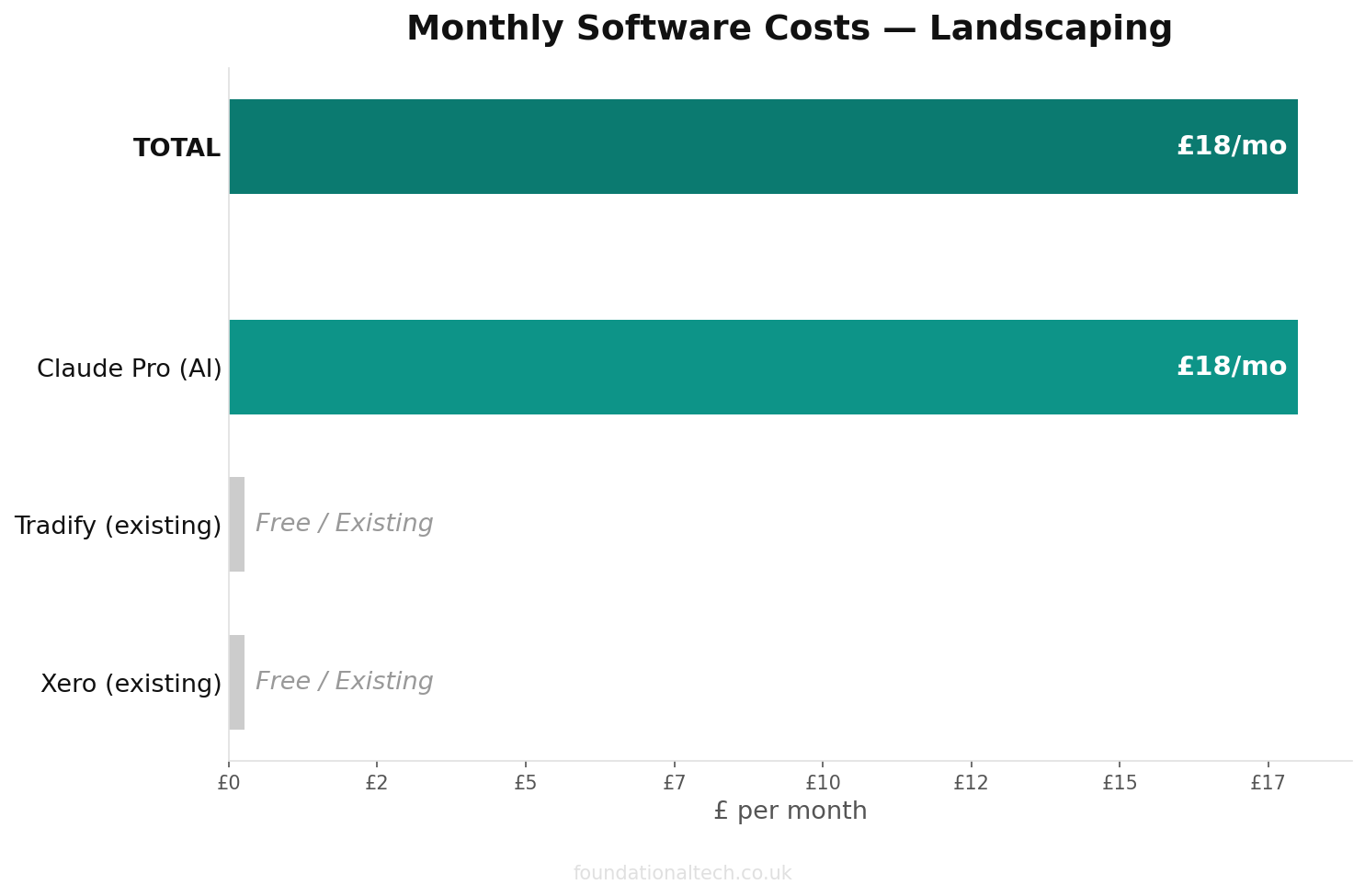
Claude Projects (recommended for most). A "Project" inside Claude is a workspace that holds permanent instructions and uploaded files, scoped to that project. It's the easiest to set up, it's widely rated the best writer of the lot — its drafts need the least editing, which matters when the point is that customers can't tell — and its larger memory means it comfortably holds your whole price list and document set at once. Claude Pro costs around £18 a month, or roughly £14 a month if you pay about £160 for the year up front. For a landscaping firm whose main use is quotes, emails and customer messages, this is the one to start with.
ChatGPT Custom GPTs. A "Custom GPT" is the same idea on ChatGPT's side: a named, preconfigured version of ChatGPT with your instructions and uploaded knowledge built in. It's a strong option, especially if you already pay for ChatGPT Plus (£20 a month), and it can do a few extra things like browse the web and generate images. The trade-off is that the writing usually needs a touch more editing than Claude's.
The API (skip it for now). You can wire AI directly into your own systems through a developer interface called an API. Ignore this unless you've got a tech-minded friend doing it for you — it's power you don't need yet, and the two options above cover everything in this guide.
The honest recommendation: start with Claude Projects on a Pro plan. If you already live in ChatGPT, a Custom GPT will serve you just as well. Don't pay for both.
Step 2: Write Your System Prompt
The "system prompt" is the standing instruction your AI worker reads before every single conversation. It's the most important step, and it's worth getting right once because you'll never have to write it again. Paste the template below into your Project's instructions (in Claude, that's the "instructions" box; in a Custom GPT, the "instructions" field) and fill in the brackets with your own details.
You are the office assistant for [BUSINESS NAME], a [domestic / commercial]
landscaping and garden maintenance business based in [TOWN/AREA], UK. You
help the owner, [NAME], with writing and admin. You write, draft and
summarise; you NEVER set prices, invent measurements, or make up facts.

HOW WE WORK:
- Services we offer: [e.g. garden maintenance, lawn care, hedge-cutting,
  patios and paving, turfing, planting, fencing, clearance]
- Services we do NOT offer (decline politely): [e.g. tree felling, large
  excavation, design-only work]
- Area we cover: [e.g. within 15 miles of TOWN]
- Typical customers: mostly homeowners who want plain English and a clear
  price.

HOW WE WRITE:
- Tone: warm, friendly, professional. Plain English, no jargon. Like a
  trusted local tradesperson, never corporate or salesy.
- Sign emails off as: [NAME] from [BUSINESS NAME]
- UK spelling and grammar always. Prices in pounds (£).

HARD RULES:
- Never invent a price, a measurement, or a date — leave them as [BRACKETS]
  for me to fill in.
- Never promise a timescale I haven't given you.
- If you're missing information you need, ask me before drafting.
- For anything legal, financial or regulatory (VAT, CIS, chemical/pesticide
  rules, employment), draft only and tell me to verify — never state it as
  fact.
That block does most of the work. Everything you ask it afterwards inherits these rules, so you stop repeating yourself and the drafts stop drifting off-tone.
| Step | Action | Time |
|---|---|---|
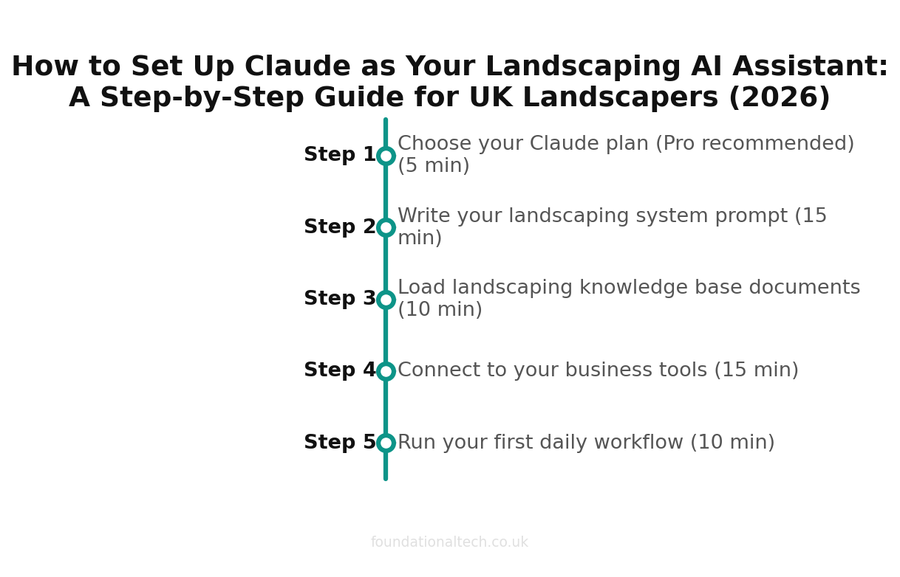
| 1 | Choose your Claude plan (Pro recommended) | 5 min |
| 2 | Write your landscaping system prompt | 15 min |
| 3 | Load landscaping knowledge base documents | 10 min |
| 4 | Connect to your business tools | 15 min |
| 5 | Run your first daily workflow | 10 min |
Step 3: Load Your Knowledge Base
Standing instructions tell the AI how to work. The knowledge base tells it what it's working with. Upload these documents into the Project (or the Custom GPT's knowledge section) — a few PDFs or even plain text files are fine:
Your price list or rate card — hourly rates, standard prices for common jobs, your call-out or minimum charge. This is what lets it slot the right numbers into a quote instead of leaving everything blank. Your service descriptions — a paragraph on each service you offer, written the way you'd explain it to a customer; the AI reuses this wording in quotes and emails. Your best past emails and quotes — three or four real examples of writing you're proud of; nothing teaches it your voice faster than showing it. Your FAQs and standard answers — the questions customers always ask (do you remove waste, do you do one-offs, how far ahead are you booking) with your usual reply. And any terms — payment terms, deposit policy, cancellation rules — so reminders and quotes reflect how you actually run things.
You don't need all of this on day one. Start with a price list and three good past emails, and add the rest as you notice the AI guessing at something it should just know.
Step 4: Connect to Your Tools (Optional, and Carefully)
This is the step people overcomplicate. You do not need to plug your AI worker into Xero, Tradify or your bank to get most of the value — and you shouldn't rush to. The setup above already drafts your quotes, emails and chasers from pasted notes, which is 90% of the win.
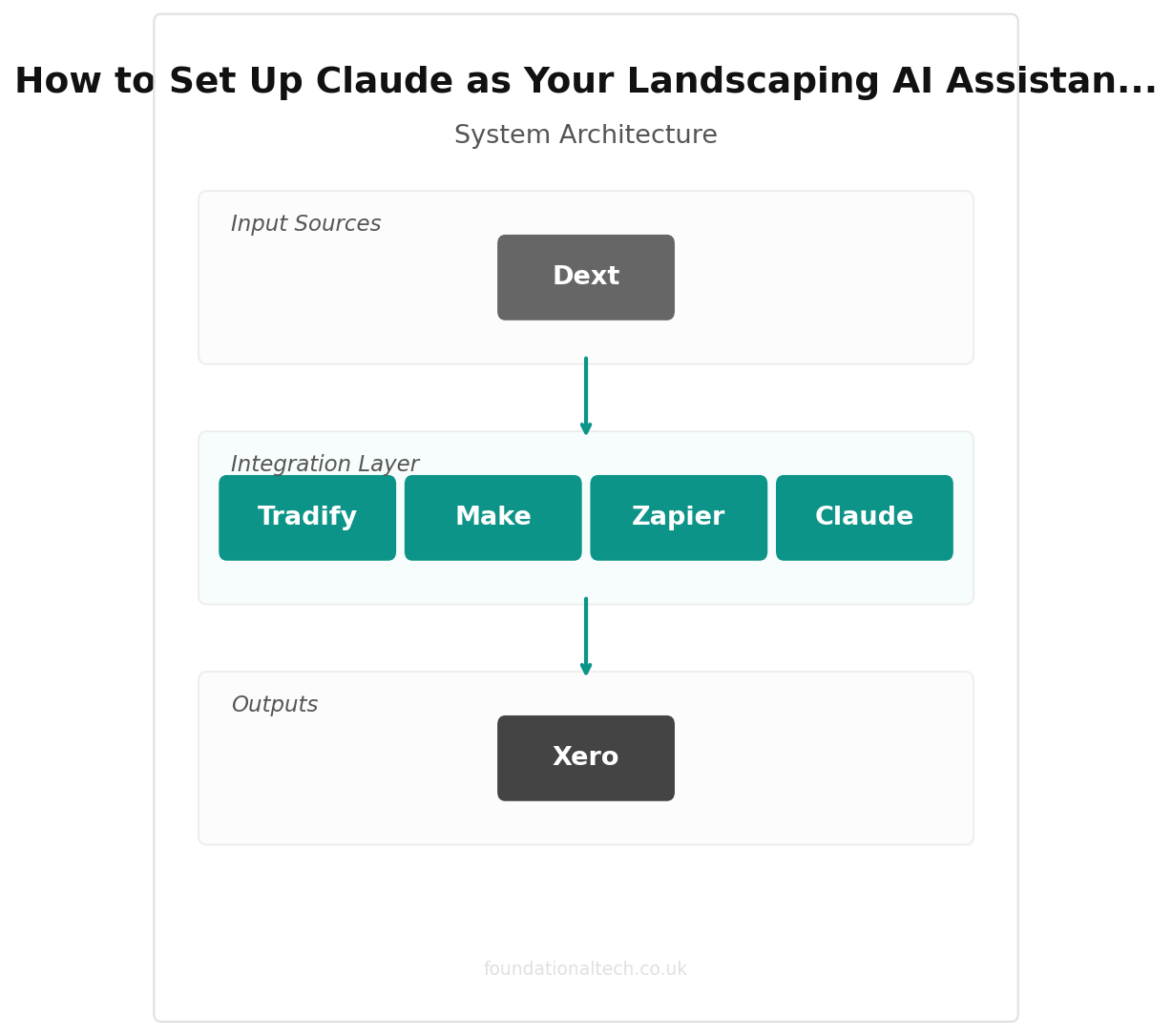
If you do want to go further, the safe approach is to keep the AI on the writing side and let your existing automation handle the doing. Your stack from the earlier articles — Tradify for jobs, Xero as the hub, GoCardless and Stripe for getting paid, Dext for receipts — already moves money and data between systems. The AI worker sits alongside that, turning notes into words. Where the two meet is simple copy-and-paste: the AI writes the quote, you paste the figures into Tradify; the AI drafts the chaser, your Xero automation sends the scheduled ones. Tools called Zapier and Make can bridge them automatically later, but that's a project for once you trust the basics — not day one. And the unbreakable rule holds: never give an AI tool the keys to send money or change your accounts on its own.
Under 1 hour
Total setup time to get Claude running as your landscaping AI assistant
Step 5: Your Daily Workflow
Here's what an AI worker actually looks like across a real landscaping day, once it's set up.
Morning, in the van. A site visit's done and the notes are on your phone. You open the Project and type "draft a quote from these notes" — paste the notes — and by the time you've finished your tea there's an itemised quote in your voice, prices left in brackets for you to drop in. You check it, add the numbers, send it.
Through the day. Enquiries land. Instead of replying between jobs in broken sentences, you paste each one in with a one-line steer ("yes, cover them, three weeks out, want a visit") and fire off a warm, complete reply at the next break. The fifteenth "do you cover my area" message takes ten seconds, not ten minutes.
End of day. The admin that used to wait for 9pm is mostly already done. What's left is quick: "draft a firm-but-friendly reminder for this overdue invoice," "write the spring email to my maintenance list," "turn today's finished job into a Facebook post." Each is a one-line request because the worker already knows your tone, your services and your rules.
Once a month. Spend ten minutes maintaining it. If a draft came back off — wrong tone, missed a service, guessed a price it shouldn't have — tweak the system prompt or add a document so it never makes that mistake again. The worker gets sharper the more you correct it, and unlike a real assistant, it never forgets the correction.
That's the whole system. An afternoon to build, ten minutes a month to maintain, and the slow, repetitive, evening-stealing writing stops being yours to do. It won't stand in a garden and work out what the customer actually wants — that's still you, and always will be. It just makes sure that everything around the real work takes minutes instead of hours.
Related guides: If you found this useful, see our guide on How to Connect Tradify, Xero, GoCardless, Stripe and Dext: The Complete Landscaping Integration Map (2026) and How UK Landscapers Are Using AI to Cut Admin Time (Without Sounding Like a Robot).
Set yours up this week and reply telling me how it went — what it nailed, and what it got wrong. I want the honest version, not the success stories: the mistakes you spot are exactly what I'll fold into the next guide so the template gets better for everyone.