Key Takeaway
Set up Claude as your accounting practice AI assistant in 45 minutes. From £18/mo with Xero integration. See the full setup guide.
An AI chatbot answers questions. An AI worker knows your practice — your clients, your tone, your compliance boundaries, your software stack — and produces work you can use with minimal editing. The difference is configuration, and it takes about 45 minutes.
This guide builds a persistent AI assistant for a UK accounting practice using Claude Projects. By the end, you'll have a workspace that remembers your practice context, connects to your Xero or QuickBooks data, and handles the repetitive drafting that eats your mornings.
What an AI Worker Actually Is
When you open Claude and type a question, you start from zero. Claude doesn't know you're an accountant, doesn't know UK tax rates, doesn't know your firm writes formal letters or friendly emails. Every conversation is a blank slate.
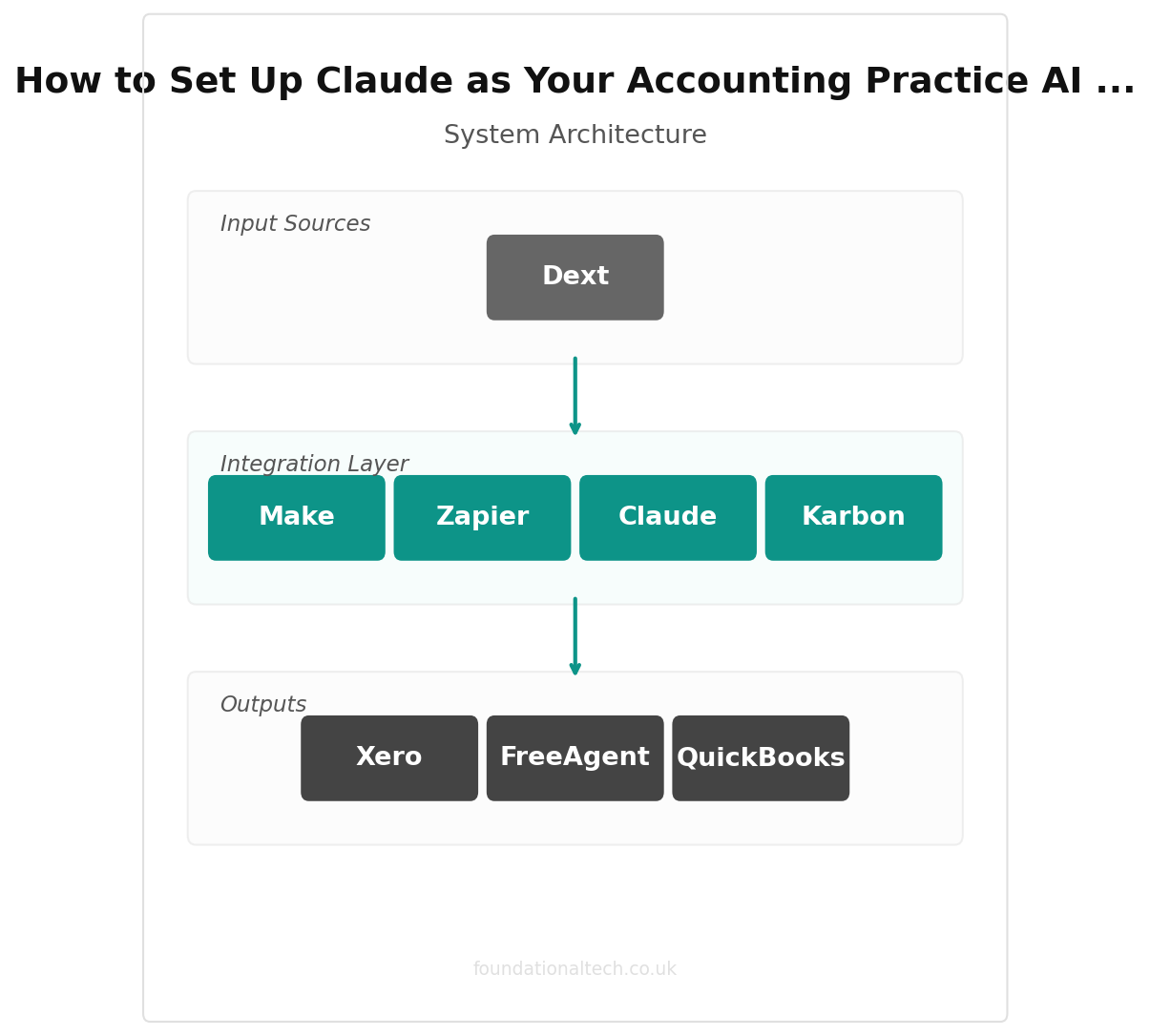
A Claude Project changes this. You write a set of permanent instructions — a system prompt — that loads before every conversation in that project. You upload reference documents. You connect tools via MCP (Model Context Protocol) so Claude can query your Xero or QuickBooks data directly. The result is an AI that behaves like a junior member of staff who's read your procedures manual, knows this year's tax rates, and understands how your practice communicates.
This isn't theoretical. Xero launched its official Claude integration in May 2026, allowing practices to query live financial data — invoices, contacts, profit and loss, balance sheet — inside Claude without copying and pasting. QuickBooks followed with its own connector. The infrastructure now exists to build something practical.
Step 1: Choose Your Platform
Three options. One clear recommendation for most UK practices.
Claude Pro — £18/month ($20)
Best for sole practitioners and small practices. Includes Projects with custom instructions, 200K token context window (roughly 150,000 words of uploaded documents), web search, and file uploads. This is where you start.
Claude Max — from £80/month ($100)
Worth considering if you're using AI heavily — more than 3-4 hours of active conversation per day. Provides 5x the usage limits of Pro and includes Claude Code for terminal-based workflows. Most practices won't need this initially.
Claude Team — £16/seat/month ($20) on annual billing
The right choice once two or more people in your practice are using AI daily. Five-seat minimum. Adds a shared workspace, admin controls, and a data processing agreement confirming your inputs aren't used for model training. That last point matters for client data handling under GDPR.
ChatGPT Plus — £20/month ($20)
A valid alternative. Custom GPTs serve a similar function to Claude Projects. ChatGPT is faster for simple tasks and has broader third-party integrations. However, Claude's reasoning is stronger for complex tax scenarios, and its tone suits professional advisory work better. If you're choosing one, start with Claude. If budget allows both, use Claude for advisory and tax work, ChatGPT for quick-turnaround drafting.
The recommendation: Claude Pro to start. Upgrade to Team when your second team member is ready. The total monthly commitment is £16 — less than a client lunch.
Step 2: Write Your System Prompt
This is the most important step. Your system prompt defines how Claude behaves in every conversation within your project. Get this right, and every interaction starts from a position of competence rather than ignorance.
Here is a complete system prompt for a UK accounting practice. Copy it, then adapt the sections in square brackets:
You are an AI assistant for [FIRM NAME], a UK [chartered accountancy / bookkeeping / tax advisory] practice based in [LOCATION].

ROLE AND BOUNDARIES
- You assist with drafting client communications, tax research summaries, management accounts commentary, and internal documents
- You NEVER give definitive tax advice — always frame recommendations as "options to discuss with your accountant" or "subject to review"
- You NEVER fabricate tax rates, thresholds, or deadlines — if unsure, say "VERIFY: [specific item]" and flag it clearly
- You are not a qualified accountant. You are a drafting and research tool

UK TAX CONTEXT (2025/26)
- Personal allowance: £12,570
- Basic rate band: £12,571 to £50,270 (20%)
- Higher rate: £50,271 to £125,140 (40%)
- Additional rate: over £125,140 (45%)
- Dividend allowance: £500
- Dividend rates: 8.75% basic, 33.75% higher, 39.35% additional
- Corporation tax: 25% (main rate), 19% effective for profits under £50,000, marginal relief between £50,000 and £250,000
- Annual investment allowance: £1,000,000
- Pension annual allowance: £60,000
- Capital gains annual exempt amount: £3,000
- Employer NI: 15% above £5,000 threshold
- Employment allowance: £10,500

PRACTICE STYLE
- Client emails: [professional but warm / formal and measured / friendly and accessible]
- Letters to HMRC: formal, cooperative, factual — never volunteer information beyond what's requested
- Management accounts commentary: plain English, written for business owners not accountants
- Internal notes: concise, use standard abbreviations (CT, SA, VAT, PAYE, RTI, CIS, AIA)

SOFTWARE STACK
- Accounts: [Xero / QuickBooks / Sage / FreeAgent]
- Practice management: [Senta / Karbon / TaxCalc / Other]
- Tax: [TaxCalc / Taxfiler / CCH / IRIS / Other]
- Payroll: [Xero Payroll / BrightPay / Moneysoft / Other]
- Document capture: [Dext / AutoEntry / Xero Files / Other]

FORMATTING
- Use GBP (£) not USD
- Date format: DD/MM/YYYY
- Tax year format: 2025/26, not 2025-2026
- When listing figures, right-align numbers in tables
- Default letter sign-off: "Kind regards, [YOUR NAME]"
Why this works: Every constraint you add reduces the editing you do later. The tax rates section means Claude won't guess. The practice style section means output matches your firm's voice. The software stack section means Claude references the right tools when suggesting workflows.
Updating it: Review your system prompt at the start of each tax year. The rates change, allowances shift, and your software stack evolves. Treat it like your engagement letter templates — annual review, specific amendments.
Step 3: Load Your Knowledge Base
Claude Projects accept uploaded documents — PDFs, Word files, text files, spreadsheets — up to 200K tokens total (roughly 500 pages of text). These documents become part of Claude's context in every conversation. Upload strategically, not exhaustively.
What to upload:
Your fee schedule and standard service descriptions. Claude can then draft accurate engagement letters and proposals without you dictating prices.
Your standard engagement letter template. Claude learns your firm's specific terms, exclusions, and liability clauses.
Your email templates — the ones you reuse for record-chasing, year-end planning, MTD onboarding. Claude can then adapt these to specific client situations rather than starting from scratch.
A summary of your top 20 clients — anonymised if you prefer. Include: entity type, industry, approximate turnover, key services you provide, any recurring issues. This lets Claude tailor output to specific client contexts when you mention them by name or description.
HMRC's MTD for Income Tax agent toolkit (published January 2026). This is 30 pages of practical guidance that Claude can reference when drafting client briefings.
What not to upload:
Raw financial data with identifiable client information. Use anonymised summaries instead, or connect via MCP (see Step 4) where data stays within Xero/QuickBooks' security boundary.
Your full procedures manual if it exceeds 100 pages. Extract the key sections — client onboarding checklist, complaint handling procedure, AML policy summary — and upload those.
Anything you wouldn't show a new employee on their first day. That's your threshold.
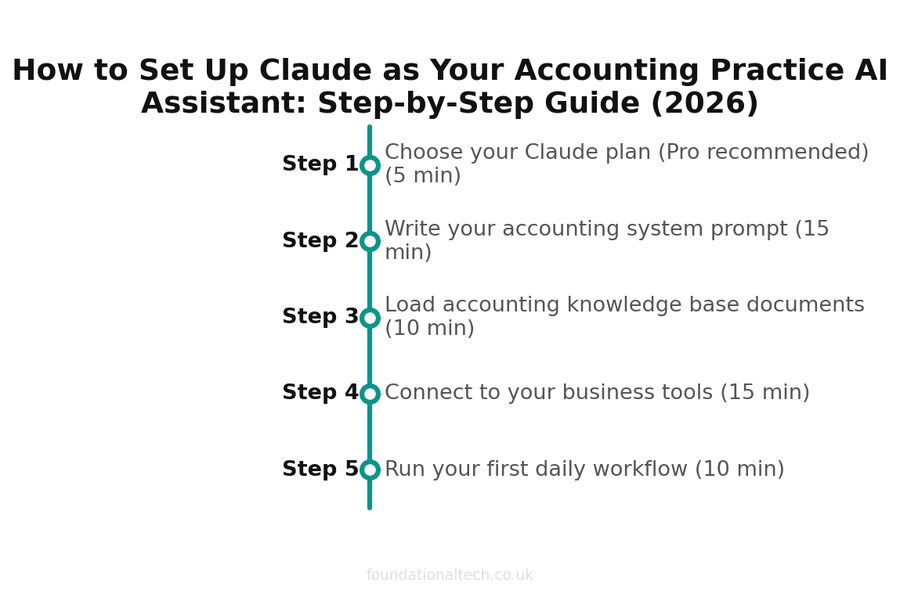
| Step | Action | Time |
|---|---|---|
| 1 | Choose your Claude plan (Pro recommended) | 5 min |
| 2 | Write your accounting system prompt | 15 min |
| 3 | Load accounting knowledge base documents | 10 min |
| 4 | Connect to your business tools | 15 min |
| 5 | Run your first daily workflow | 10 min |
Step 4: Connect to Your Tools
This is where AI moves from "helpful chatbot" to "integrated practice tool."
Xero via MCP (Model Context Protocol)
Xero released its official MCP server in 2026. Once connected, Claude can query your Xero data directly — pull profit and loss reports, check invoice statuses, review contact details, analyse cash flow — without you copy-pasting anything.
Setup requires a Xero developer account (free) and about 15 minutes of configuration. You create a custom connection in Xero's developer portal, get your client ID and secret, and add them to Claude's settings. The connection uses OAuth 2.0 — standard bank-grade authentication.
What you can then do: open Claude, type "Show me outstanding invoices over 60 days for Client A," and get the answer from live Xero data. Or: "Compare this quarter's revenue to last quarter and draft a commentary paragraph." Claude pulls the figures, runs the comparison, and writes the first draft — all in one step.
QuickBooks
Intuit launched the QuickBooks Connector for Claude in 2026 through their partnership with Anthropic. The setup process is similar — authenticate via Intuit's OAuth flow, and Claude gains read access to your QuickBooks data. The connector supports profit and loss, balance sheet, trial balance, invoice queries, and contact lookups.
For practices wanting to automate multi-step workflows, Zapier's MCP integration connects Claude to over 7,000 apps. Practical examples for accountants: automatically categorise incoming documents in your email, generate draft responses to common client queries, or trigger a workflow when a client uploads records to your portal.
Make.com (formerly Integromat) offers similar capabilities with a visual workflow builder. Both integrate with Xero, QuickBooks, Google Workspace, and Outlook.
A note on security: Every MCP connection operates within the source application's security model. Your Xero data doesn't transfer to Anthropic's servers for storage — Claude queries it in real time and the session data isn't used for model training. This is architecturally different from pasting a P&L into a chat window. On Claude Team and Enterprise plans, you get a formal data processing agreement confirming this.
Step 5: Your Daily Workflow
Here's how a configured Claude AI worker fits into a typical practice day.
8:30 — Morning triage. Open Claude. Ask: "Summarise the emails I need to respond to today" (requires Outlook/Gmail connection via Zapier MCP, or paste your inbox summary). Claude drafts response priorities.
9:00 — Client work block. Working on management accounts for Client B. Open your Accounts Project in Claude. Type: "Pull Client B's P&L for Q1 2026 and compare to Q1 2025. Draft a 300-word commentary highlighting the three biggest variances." Claude queries Xero, builds the comparison, writes the commentary. You review, add the context only you know — the client hired two people in February, lost a contract in March — and the pack is done. Total time: 8 minutes instead of 45.
11:00 — Tax research. Client calls about selling shares in their company. You need to check BADR qualifying conditions. Open Claude, paste the prompt from the Prompt Playbook: "Summarise BADR conditions for a client selling 40% of shares, held 4 years, part-time director." Claude returns a structured summary in 30 seconds. You verify the key thresholds against GOV.UK (2 minutes) and call the client back with confidence. Total time: 5 minutes instead of 30.
14:00 — Correspondence. Three client emails to draft, one HMRC response, one engagement letter for a new client. Open Claude with your practice project active. Work through each one using the Prompt Playbook templates. Total time: 20 minutes instead of 75.
16:30 — End-of-day admin. Ask Claude to draft tomorrow's task priorities based on your practice management deadlines. Review and adjust. Close the day knowing tomorrow's first hour is already planned.
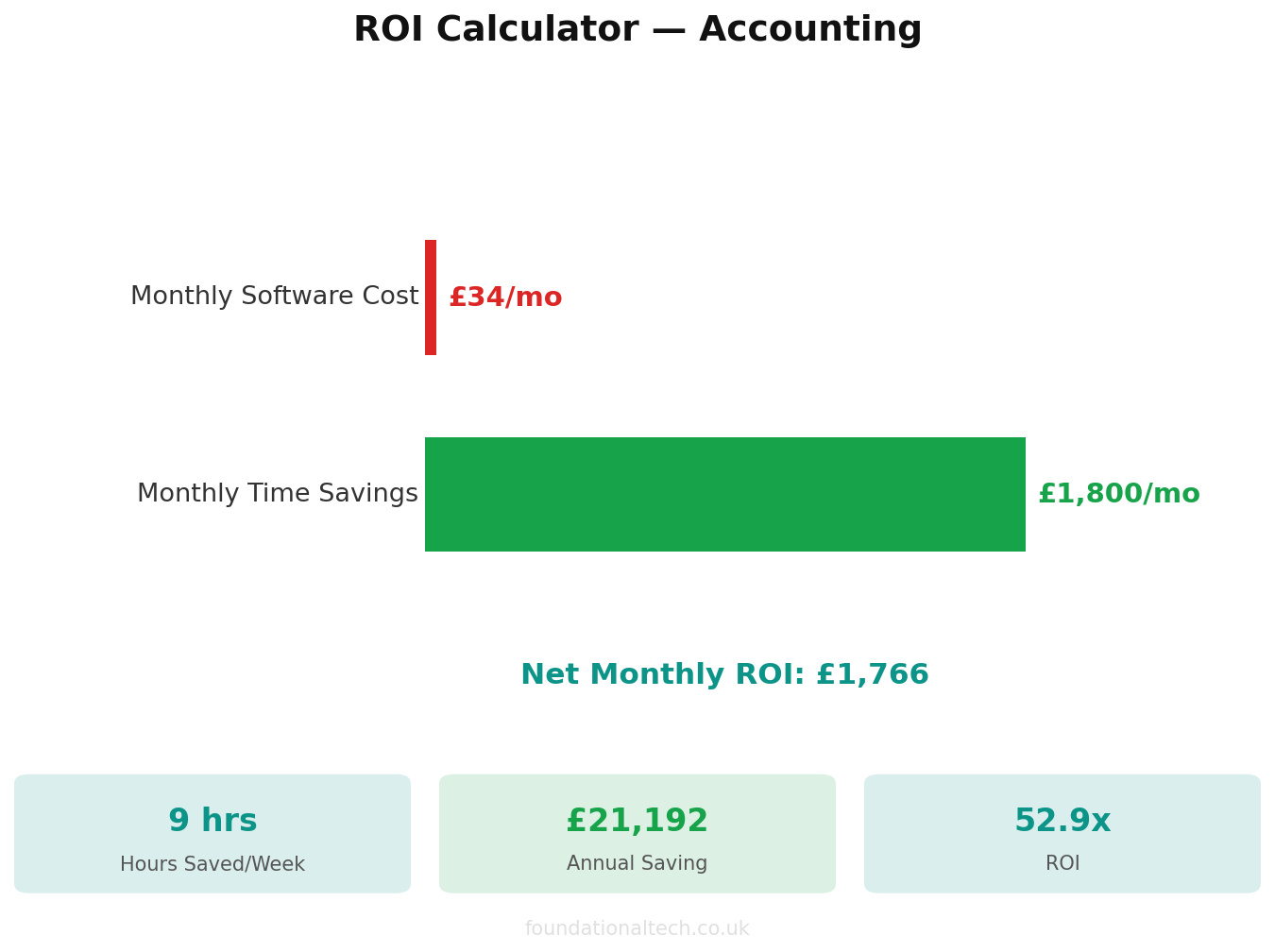
The realistic daily saving: 90 minutes to 2 hours, concentrated in drafting and research. Not a theoretical projection — it's what practices report after the first month of consistent use.
What This Costs
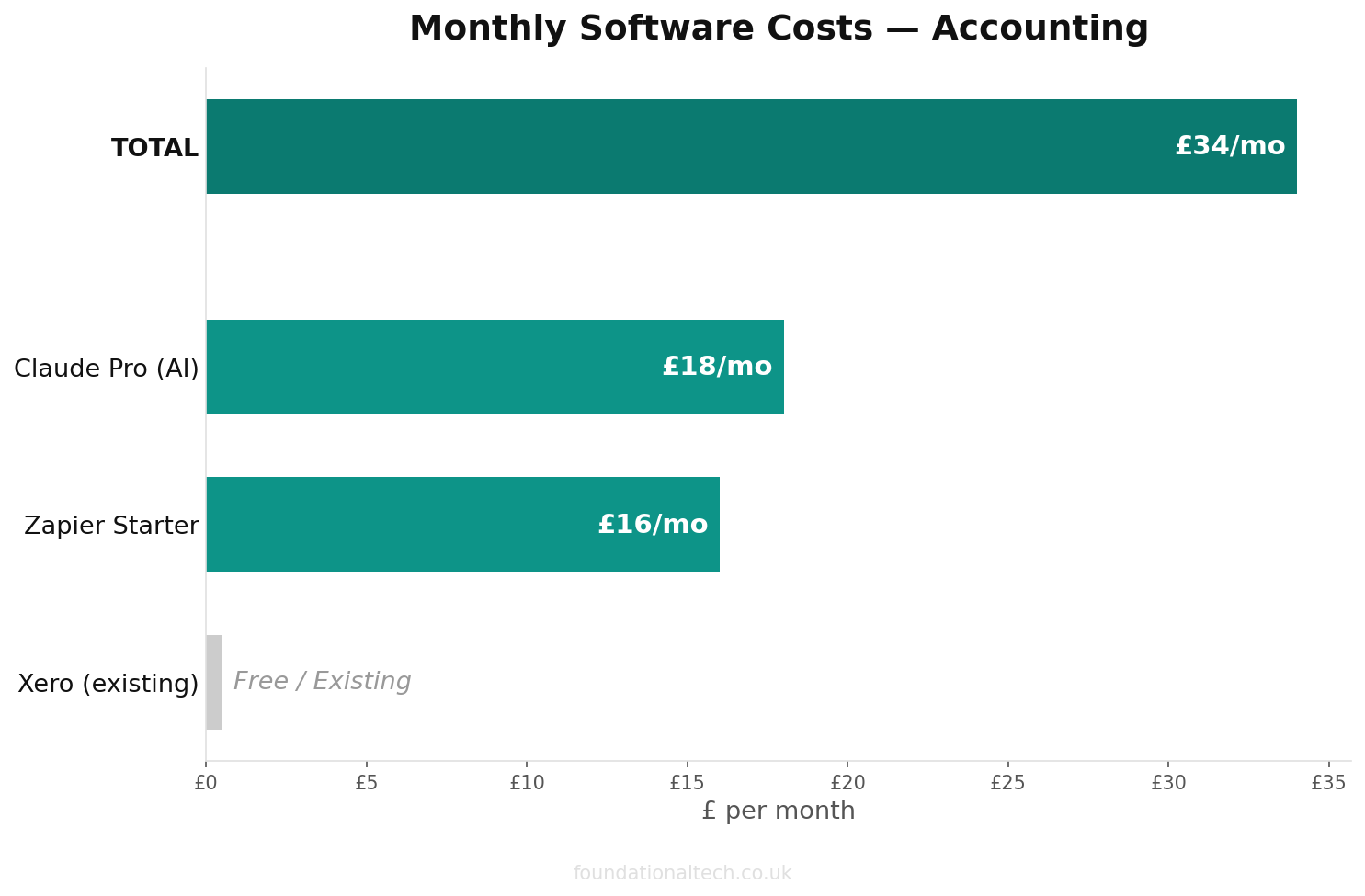
| Item | Monthly Cost |
|---|---|
| Claude Pro (1 seat) | ~£18 |
| Claude Team (5 seats) | ~£80 |
| Xero (already paying) | £0 additional |
| Zapier (Starter, if using automations) | ~£16 |
| Solo practitioner total | ~£16 |
| 5-person practice total | ~£96 |
Against the time saved — conservatively 30 hours/month for a sole practitioner, 80+ hours for a five-person team — the maths are unambiguous.
Under 1 hour
Total setup time to get Claude running as your accounting AI assistant
Common Mistakes to Avoid
Uploading sensitive data without anonymisation. Until you're on a Team plan with a DPA, strip client names, UTRs, and NI numbers from anything you paste or upload. Replace with "Client A" or generic identifiers. Claude doesn't need personal details to analyse a P&L.
Not updating the system prompt each tax year. The rates in your prompt are from 2025/26. Come April, you need to update them. Set a calendar reminder for the first week of April.
Trying to replace judgement with AI. Claude drafts. You decide. The moment you start sending AI output without reading it is the moment your professional indemnity insurer gets nervous. Every output needs a human review — the same standard you'd apply to any work produced by a trainee.
Over-configuring at the start. Start with the system prompt and two or three uploaded documents. Use it for a week. Notice what's missing. Add incrementally. The practices that fail with AI are the ones that spend two days configuring everything perfectly before using it once.
Set up your Claude Project this week. It takes 45 minutes. Reply and tell me what system prompt customisations you made for your practice — I'm building a library of practice-specific configurations and yours might help another firm.
A & Y Financial Services configures AI workers for accounting practices and trains teams on daily AI workflows. That's what we do.
Related: I Was a Qualified Accountant Who Couldn’t Get Paid on Time.
For a full comparison of the tools that sit alongside Claude, see Best Accounting Practice Management Software UK.